Fix "Display Driver Stopped Responding" Game Crashes
The game freezes, the screen goes black for a second or two, and Windows announces the display driver has recovered — or the game just dies with no error at all. That pattern has a technical name and a paper trail in Event Viewer. This walkthrough confirms the diagnosis first, then works through the five causes in the order that finds the culprit fastest.
The crash has a signature: the game freezes, audio loops or stutters, the screen goes black for one to three seconds, and either the picture returns with a Windows notification saying the display driver stopped responding and has successfully recovered — or the game exits to the desktop with no error at all. It can happen once a week or five times an evening, and it feels random. It is not. Windows is logging every one of these events, and once you read that log, the list of possible causes shrinks from "anything" to five specific suspects you can test one at a time.
Menu paths below can shift between versions. The steps here were written against Windows 11 24H2 and current NVIDIA and AMD driver software. Registry locations and driver installer options have been stable for years, but if a menu looks slightly different, look for the same words on the screen you land on.
What is actually happening: the TDR watchdog
Windows does not let a graphics card hang the whole system. It runs a watchdog called TDR — Timeout Detection and Recovery. If the GPU stops acknowledging Windows requests for longer than the default timeout of 2 seconds, Windows force-resets the display driver. That reset is what you experience as the black flash and the "recovered" notification. Every fix below is about one of two things: why the GPU went silent, or whether the silence was a legitimate long workload that merely needs more time.
Before changing anything, confirm that this is what is happening, because two other crash types look identical from the chair:
- Press Win + R, type eventvwr.msc, and press Enter.
- In the left pane go to Windows Logs → System.
- Set the time window to the moment of a recent crash and look for a Warning with Source: Display and Event ID 4101. The message names the driver — nvlddmkm for NVIDIA, amdkmdag for AMD, and an igfx-style name for Intel — followed by "stopped responding and has successfully recovered."
Event ID 4101 at the exact crash time confirms a TDR. If instead you see Kernel-Power Event 41 (the whole PC rebooted) or WHEA-Logger errors (CPU, PCIe, or memory hardware faults), the GPU driver is a bystander and the steps in section 4 are your real path. If there is no 4101 at all and the game simply exits, that is a game or driver-install problem, and section 2 usually fixes it.
Fix 1: A genuinely clean driver reinstall
The most common software cause is a half-updated driver stack: years of in-place upgrades leave stale shader caches, leftover registry entries, and mismatched component versions that only misbehave under game load. The fix is a clean slate:
- Download first, uninstall second. Get the full driver package directly from NVIDIA, AMD, or Intel — not a "driver updater" utility, which is unnecessary at best. You will be offline-capable for the reinstall.
- Boot to Safe Mode: Settings → System → Recovery → Advanced startup → Restart now, then Troubleshoot → Advanced options → Startup Settings → Restart, and press 4.
- Run DDU (Display Driver Uninstaller, a free standard tool). Select your GPU vendor and choose Clean and restart. It removes the driver, leftover services, and cached packages that the normal uninstaller keeps.
- Install the package you downloaded. On the NVIDIA installer choose Custom → Perform a clean installation; on AMD, the factory-reset option in the installer.
Run your problem game for an evening. A surprising share of "random" TDRs never come back after this step, because the corruption was in the stack, not the card.
Fix 2: Give long GPU workloads more time (TdrDelay)
There is one case where the GPU went silent for a legitimate reason: long, uninterrupted kernel-mode work such as shader compilation on first launch after an update, or VRAM-heavy load transitions. Windows cutting it off at 2 seconds turns a normal workload into a crash. Raising the timeout is a targeted workaround for exactly this pattern:
- Press Win + R, type regedit, press Enter.
- Navigate to HKEY_LOCAL_MACHINESYSTEMCurrentControlSetControlGraphicsDrivers.
- Create a new DWORD (32-bit) Value named TdrDelay, set it to 8 (Decimal). Optionally add TdrDdiDelay = 8 as well.
- Reboot. The new timeout is 8 seconds.
Back up before editing the registry: in regedit, use File → Export on the GraphicsDrivers key first. And be honest about the pattern: if crashes still happen at 8 seconds, the GPU is not "slow" — it is failing, and no timeout value will help. Move to the hardware checks.
Fix 3: Thermals, power delivery, and stability
When software is ruled out, three hardware causes cover nearly everything left:
- Heat. Check sensors with HWiNFO64 (free) during a 15-minute play session. Sustained GPU temperatures in the mid-80s °C or higher, or a memory-junction temperature climbing past 90 °C on newer cards, point at dust-clogged fins or dried paste. Cards usually throttle before they crash, but months at the thermal ceiling make load-spike instability much more likely.
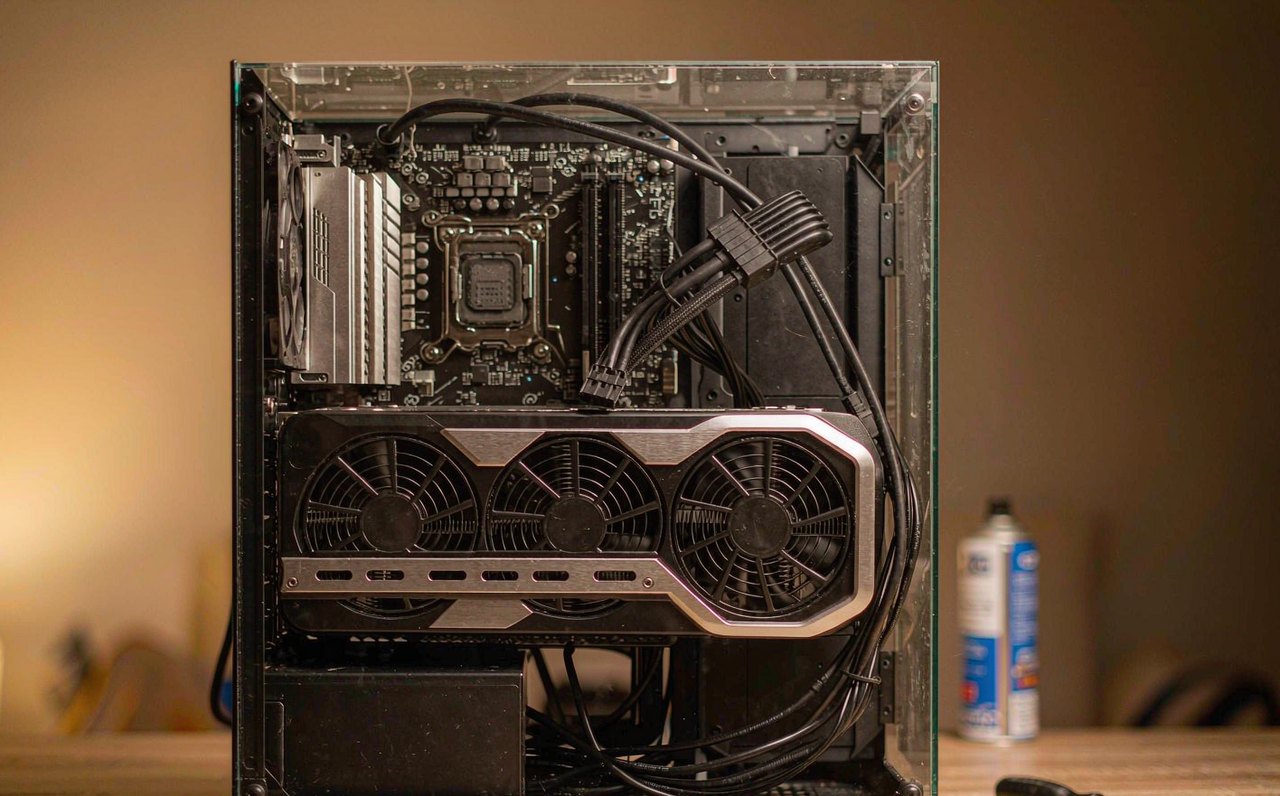
- Power delivery. Modern GPUs draw brief power spikes well above their rated board power. A tired or undersized PSU can sag the 12 V rail for just long enough to reset the card — which Windows logs as a TDR. Suspect this when crashes happen only under load, the PSU is five or more years old, or the card was recently upgraded. Use two separate PCIe cables instead of one daisy-chained cable for high-wattage cards, and make sure every power connector is fully seated.
- Clock instability. Any overclock — including undervolts and vendor "OC mode" profiles — must be ruled out at stock. Reset everything with MSI Afterburner's reset button or the vendor utility. Memory instability in particular produces TDRs that appear in only some games. If crashes continue at stock, run a stress test such as OCCT's VRAM test to reproduce the fault outside a game.
Laptop owners get one extra step: make sure the game actually runs on the discrete GPU. Open Settings → System → Display → Graphics, add the game, and set it to High performance. Stale iGPU drivers plus mixed-GPU handoffs are a classic laptop-only TDR source.
When none of that fixed it
If 4101 events persist on a clean driver install, at stock clocks, with good temperatures and solid power: reseat the card in a different PCIe slot to rule out the slot itself, run Windows Memory Diagnostic (search mdsched in the Start menu) because unstable system RAM can corrupt driver memory, and if possible test the GPU in another machine — that is the cleanest way to separate card from board. Repeated TDRs together with on-screen artifacts like colored dots or checkerboard patterns usually mean failing VRAM, which is repair-or-replace territory.
Work through the steps in order — confirm the 4101, clean the drivers, adjust the timeout only for compile-time crashes, then check thermals, power, and stock clocks — and the crash either disappears or narrows to one testable component. Stuttering without crashing is a different animal entirely, covered in the Windows 11 stutter guide, and once stability is back, the input lag reduction checklist is where the remaining milliseconds live. More fix-it-yourself walkthroughs are collected on the full article list.