GTA V PC Graphics Settings, Ranked: Where Your FPS Actually Goes
GTA V is a decade old and still one of the most-played PC games, but its graphics menu hides a trap: one setting can cost you half your frame rate while three others cost almost nothing. This breakdown ranks every meaningful option by real FPS impact, explains what the Advanced Graphics tab actually does, and ends with the built-in benchmark so you can verify your own numbers.
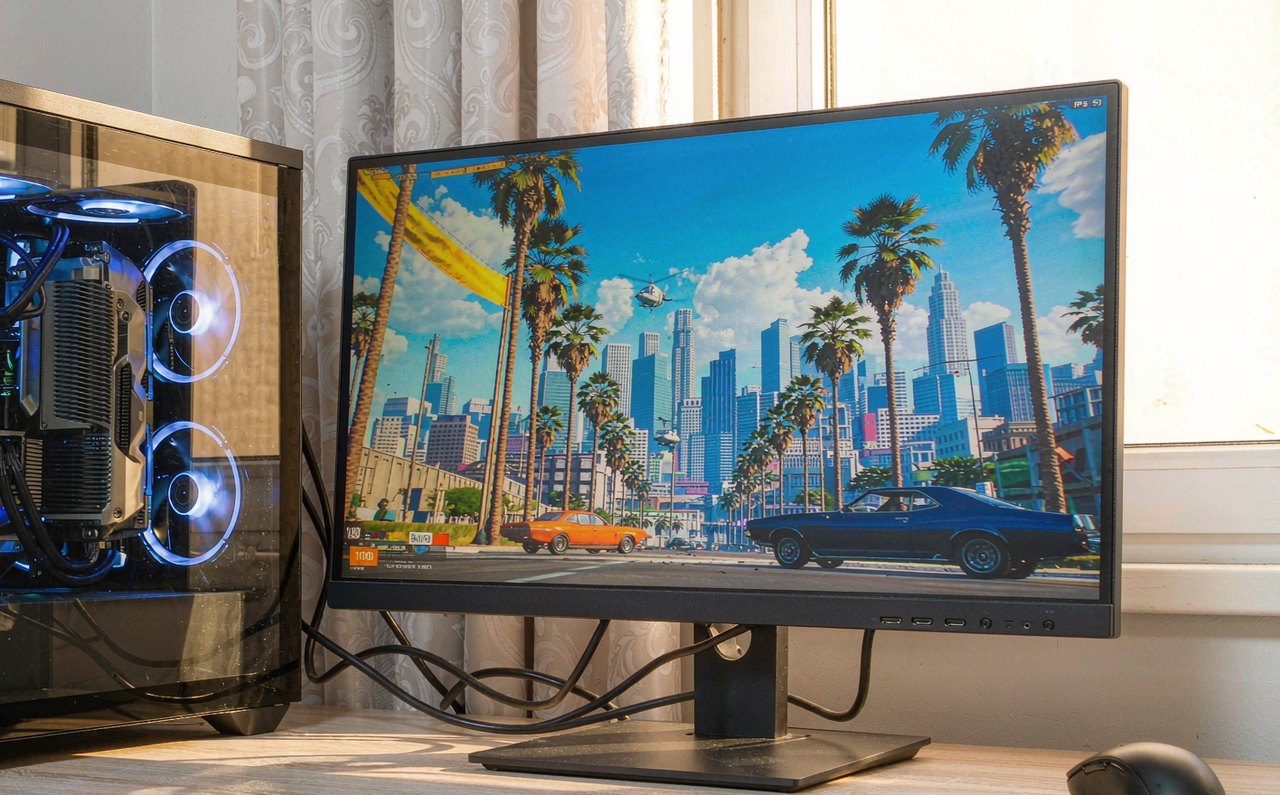
GTA V has outlived three console generations, and the PC version's graphics menu is so deep that most players never touch the half of it that matters. That is a missed opportunity, because the cost of GTA V's settings is wildly uneven: a few options can halve your frame rate, while several visually identical settings barely move it at all. Whether you are chasing stable 60 FPS on older hardware or 144 for a high-refresh display, the efficient path is the same — spend where the game actually spends, and stop paying for pixels you cannot see.
A note on editions first: after the Enhanced edition arrived, the PC community was split between it and the Legacy version, and menu layouts differ slightly between the two. The underlying settings and their relative costs are the same in both, so the ranking below holds either way — only the exact wording of a label may shift.
Verify, do not trust. GTA V ships with a built-in benchmark (Pause menu → Graphics tab → Run Benchmark) that replays a fixed fly-through and reports minimum and average frame rates. Every claim below can be checked against it in about three minutes: change one setting, rerun the benchmark, compare numbers. That habit is worth more than any preset guide, including this one.
The one setting that can halve your FPS: MSAA
Multi-sample anti-aliasing (MSAA) is GTA V's single most expensive option, and it is not close. MSAA works by rendering the scene at effectively higher resolution along polygon edges, and its cost scales brutally: at 1080p, moving from FXAA to MSAA 4x commonly costs on the order of a third of your frame rate, and 8x can approach half. Advanced Graphics adds an "MSAA Frames" option on top, which multiplies that cost further.
The practical ladder, from cheapest to most expensive:
- FXAA — nearly free, blurs fine detail slightly. The right choice when you need every frame.
- TXAA — smoother edges than FXAA at a moderate cost, with a slight softening some players dislike.
- MSAA 2x / 4x / 8x — the best image quality, paid for in frame rate that scales steeply with resolution.
The efficient compromise on mid-range hardware: run FXAA or TXAA and invest the saved frames in resolution (render scale or a higher output resolution). A cleaner image from more pixels usually beats MSAA at the same frame budget. If you are locked to 1080p and still starving for performance, MSAA should be the first thing you drop — not shadows, not grass.
The shadow cluster: expensive, but individually manageable
Shadows in GTA V are not one setting but a family of them, and they interact:
- Shadow Quality — the base resolution of shadow maps. A meaningful, moderate cost; dropping from Very High to High is usually worth it on mid-range GPUs.
- Soft Shadows — the algorithm's softness. "Softest" is dramatically more expensive than "Sharp" because it computes multi-sample penumbras. Sharp shadows are visibly crisper at close range anyway; this is one of the highest-value cuts.
- High Resolution Shadows — sharpens the base shadow maps; moderate cost, moderate gain. Try it off first.
- Long Shadows and High Detail Streaming While Flying (Advanced Graphics tab) — situational and mostly VRAM-heavy. Long Shadows only visibly matters at dawn and dusk angles; flying detail only matters if you spend real time in aircraft.
Grass Quality: the famous trap
GTA V players have known for a decade that Grass Quality is special: in downtown Los Santos it barely registers, but drive into Blaine County at Ultra and the frame rate can drop by 10–20%, because Ultra draws individually rendered grass blades out to a much longer distance. If you spend time in the countryside — heists, free roam, the airfield — High instead of Ultra is one of the cheapest wins in the whole menu. In the city, you can leave it High permanently and lose nothing you would notice.
Advanced Graphics: mostly a VRAM tax, not an FPS tax
The Advanced tab intimidates people, but most of it scales video memory, not frame rate:
- Extended Distance Scaling — draws more of the world at full detail. Primarily VRAM; frame rate impact is modest on cards with headroom, severe on cards that run out and start swapping.
- High Detail Streaming While Flying — same logic, aircraft-specific.
- Particle Quality — explosions and effects. Usually light, but it spikes during firefights and crashes — exactly when you least want a frame drop. Keep it at High, skip Ultra.
- MSAA Frames — the exception that proves the rule: it multiplies MSAA's already-steep cost. Leave it at default unless you have a top-tier GPU and a specific reason.
What barely costs anything at all
- Texture Quality — costs VRAM, not frame rate, up to the point where VRAM runs out and stuttering begins. Set it as high as your VRAM allows with margin; watch for stutter as your failure signal, not FPS.
- Population Density / Variety — light on the GPU, but in downtown Los Santos it is real CPU load. On a CPU-bound system, trimming density from 100% to 60% can recover more frames than any GPU setting.
- Reflection and Water Quality — moderate costs with modest visual payoff at typical viewing distances. High rather than Very High is a free-looking win.
Frame pacing: the settings nobody scrolls to
Two options sit outside the quality list and matter more than half of it. V-Sync off eliminates its added input delay; pair that with the Frame Limiter set to your display's refresh rate (or slightly below it) to keep frame pacing stable without tearing. Chasing an uncapped 110 FPS on a 60 Hz panel only produces inconsistency — the game famously runs worse fluctuating between 60 and 110 than stable at 60. The same stability-first logic applies to other demanding titles, as covered in the stuttering walkthrough and the input lag guide.
A starting point by GPU tier
Treat these as baselines for 1080p, then verify with the built-in benchmark: on entry-level cards (4 GB class), FXAA, Normal shadows, High grass, and texture quality at High. On mid-range cards (6–8 GB), TXAA or MSAA 2x, High shadows with Sharp soft shadows, Very High textures, High grass. On high-end cards, MSAA 4x is finally affordable, and everything else can go Very High except MSAA 8x, which almost never justifies itself over 4x. Run the benchmark once per change, write the numbers down, and you will have a personal settings guide more accurate than anything written for a different machine — including this one. More performance breakdowns for other games live in the guide archive, and the tools section includes calculators for refresh-rate and VRAM budgeting.