Fix Bluetooth Headset Audio Lag and Delay in Games
Gunshots arrive after the muzzle flash and footsteps trail behind the player. Why Bluetooth adds delay to games, which codec and settings cut it most, and when a wired or 2.4 GHz headset is the only real fix.
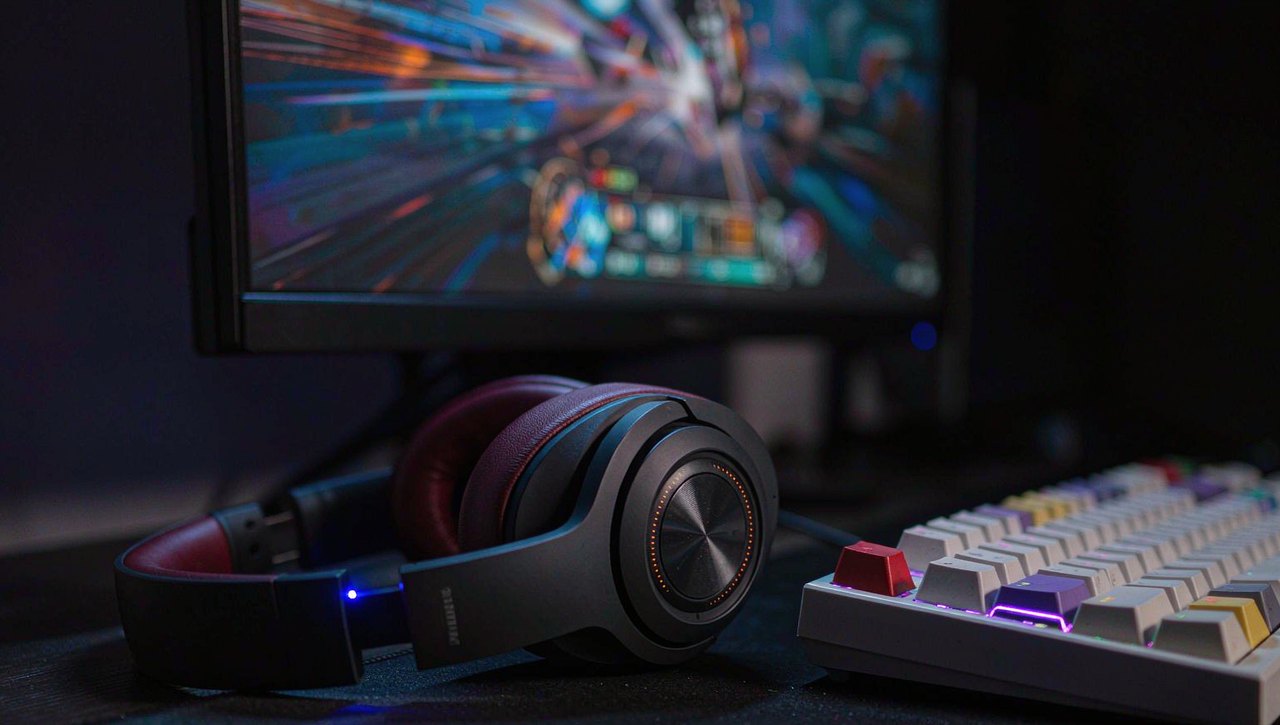
You see the muzzle flash a split second before you hear the shot. Enemy footsteps sound like they are happening in the next room over. Menus blip along fine, videos stream fine, but the moment a game starts, the sound feels detached from the picture. That gap is audio latency — the delay between the game producing a sound and your ears receiving it — and Bluetooth is almost always the reason. This guide explains where the delay actually comes from, the settings and codec changes that shrink it, and the honest threshold where no setting tweak will save you because the technology itself cannot go fast enough.
How much delay Bluetooth really adds
First, calibrate what you are fighting. A wired connection or a decent 2.4 GHz wireless headset delivers audio in roughly 10 to 40 milliseconds — imperceptible for most people. Bluetooth is different by design: it buffers, compresses, and re-encodes every stream, and the totals stack up:
- SBC, the baseline codec every Bluetooth headset supports: typically 150 to 250 ms of total delay. This is the codec your headset is probably using right now, because Windows and macOS pick it unless something better is available on both ends.
- AAC: similar range, roughly 150 to 220 ms — optimized for music quality on Apple devices, not for latency.
- aptX-LL and aptX Adaptive: the low-latency exceptions, roughly 60 to 100 ms — but they require both the headset and the transmitter to support the codec, which limits them mostly to dedicated dongles and some Android phones, not typical PC setups.
- Bluetooth LE Audio with the LC3 codec: newer hardware can reach roughly 60 to 80 ms, but adoption is still limited and PC support depends on your adapter and Windows version.
Now compare that with the game itself. Single-player games do not care much — a 200 ms echo on a cinematic soundtrack is annoying but playable. Competitive multiplayer is a different story: sounds in shooter and fighting games are informational, and the useful reaction window to a footstep can be shorter than the delay itself. This is why your music sounds acceptable on the same headset that makes ranked play impossible.
Step 1: Find out which codec you are using
On Windows 11: right-click the speaker icon, select Sounds (or Settings → System → Sound → More sound settings), open the Playback tab, right-click your headset, choose Properties, then the Advanced tab. Under "Default Format" you will see the sample rate and bit depth in use. Windows does not name the Bluetooth codec directly, but if nothing special is installed, it is SBC. The simplest upgrade path on many PCs is to enable aptX support via a compatible USB Bluetooth adapter (look explicitly for aptX or aptX Adaptive on the box) and then pair the headset fresh — Windows negotiates the best shared codec automatically at connection time.
On macOS: the terminal command sudo defaults write bluetoothaudiod "Enable AptX codec" -bool true (on supported Macs) enables aptX for compatible headphones, and Audio MIDI Setup shows the codec in use. On Android: with Developer Options enabled, Settings → Developer options → Bluetooth audio codec shows and lets you force a specific codec — useful for testing which one your headset actually negotiates.
One more trap: the mic switch changes everything. The moment a game, Discord, or your browser activates the headset's microphone, Bluetooth switches from the high-quality A2DP profile to the headset profile (HFP/HSP), which drops audio quality and adds delay. If your game audio suddenly gets worse when you join voice chat, this is why. Our guide on fixing headset mic problems covers the profile-switching behavior in more depth.
Step 2: Squeeze out the Windows-side delay
These changes remove maybe 30 to 80 ms of the total stack. They will not rescue SBC, but they make aptX-class setups noticeably tighter:
- Disable audio enhancements. Sound Control Panel → Playback → your headset → Properties → Enhancements (or "Signal Enhancements") tab → check Disable all enhancements. Spatial processing and loudness equalization each add buffering.
- Set the format to match the game. In the same Advanced tab, set Default Format to 24-bit, 48000 Hz (or 16-bit, 48000 Hz on older adapters). Unusual high rates force resampling, which adds latency.
- Turn off mono/battery-saver modes and handsfree telephony. In Device Manager under Bluetooth, some adapters expose a "Handsfree Telephony" service per device — untick it to stop Windows from grabbing the low-quality profile for casual use.
- Reduce radio contention. Bluetooth shares the 2.4 GHz band with Wi-Fi. If your PC is on 2.4 GHz Wi-Fi, switch to 5 GHz or Ethernet (our comparison of Wi-Fi versus Ethernet for gaming covers the network side). Keep the headset within a few meters of the adapter with no metal shelving in between, and move USB 3.0 drives or hubs away from the Bluetooth dongle — USB 3.0 ports are notorious 2.4 GHz noise emitters. Plug the dongle into a front port or use a short extension cable.
- Reconnect fresh after changing anything. Bluetooth codec negotiation happens at pairing. Remove the device, re-pair it, then re-check your format settings.
Step 3: Reduce the delay at the source
A few in-game and system settings also help, and they apply to any audio device:
- In Discord/voice apps: turn off noise suppression and echo cancellation processing chains where quality allows — the echo canceller buffers several hundred milliseconds on some setups.
- In-game: disable "3D audio" or headphone virtualization if the headset is already doing its own processing; double processing adds latency and rarely helps.
- On Windows 11 24H2 and newer: Settings → System → Sound → your device → Audio enhancements → Off, and consider enabling Bluetooth LE Audio if your adapter and headset both support it — it is the one Bluetooth path with genuinely competitive latency.
Measure your own lag before and after
Guessing whether an audio delay is 100 ms or 250 ms is hard by feel, but you can measure it cheaply. Open a metronome or clap video on your monitor and record the headset output with a phone next to your ear: the offset between the visual click and the audio click in your recording is your total round-trip delay. Even a rough phone-camera capture at 30 fps resolves the question to within about 30 ms, which is enough to compare setups. Run the test three times: first with the stock configuration, then after each fix below, and finally with a wired pair as your baseline. Write the numbers down. Most people discover their Bluetooth stack is 40 to 80 ms worse than they assumed, which makes the hardware decision easy instead of emotional. Repeat the test a week later too — Bluetooth renegotiates its buffer whenever the radio environment changes, so a setup that measured 120 ms next to the router can drift to 180 ms after you rearrange a room. If your numbers swing that much between sessions, that instability itself is the answer: the connection cannot hold a competitive-grade delay target, and no setting will make it stable.
When the only real fix is different hardware
Here is the honest part. If you play shooters or anything reaction-based and your setup is stuck on SBC or AAC, the fixes above will not close a 200 ms gap — competitive play needs to be under roughly 80 ms to feel fair, and ideally under 40. Your realistic options, in order of cost:
- Wired, always. A $20 to $40 wired headset or even cheap earbuds deliver the lowest possible latency. Ugly and practical.
- 2.4 GHz wireless gaming headsets with a USB dongle ($70 to $180). These use proprietary radio protocols, not Bluetooth, and hit 20 to 40 ms. This is the standard answer for wireless PC gaming and the one worth saving for.
- Low-latency Bluetooth (aptX Adaptive or LE Audio) for everything else. Fine for single-player, RPGs, strategy, and music; a compromise for ranked play.
The bottom line
Bluetooth audio lag in games is a codec and profile problem, not a settings mystery. Check which codec you are actually using, kill the handsfree profile and audio enhancements, clean up your 2.4 GHz radio environment — and then be honest about the ceiling. For cinematic games, a tuned Bluetooth setup is perfectly usable. For competitive play, a dongle-based wireless headset or a plain wire is the only fix that measures up. Note that menu names vary slightly by Windows version and headset firmware; if a specific option is missing, your adapter or headset likely lacks support for it.
More fixes in the SavePoint blog index — including reducing input lag for the video side of the same problem, and fixing online game lag when the delay is network-side instead.