SSD vs HDD for Games: What Load Times Really Show
Why a 7,000 MB/s NVMe drive barely beats a 550 MB/s SATA drive in game loading, where the speed difference actually matters, and how to move installs without re-downloading.
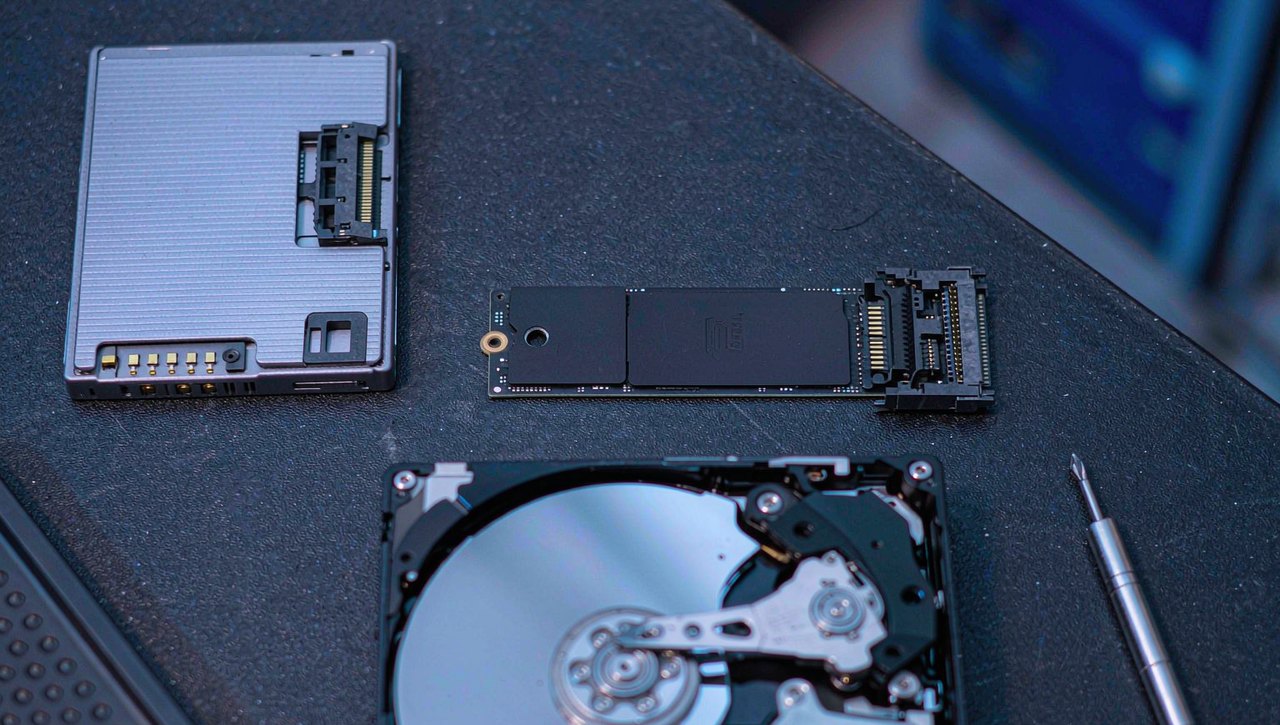
Ask whether games need an SSD and you will get two confident, opposite answers: "an SSD doubled my load speeds" and "I put my games on an NVMe drive and my FPS did not move at all." Both people are telling the truth, and the contradiction disappears once you know what a game actually does with a drive. Loading is not one operation. It is thousands of small scattered reads plus CPU work that has nothing to do with storage speed, and that mix — not the megabytes-per-second number on the box — decides your load screen.
This guide walks through what each drive type can physically deliver, why game loading ignores most of it, the specific places a fast drive genuinely changes gameplay, and the practical steps for checking and moving your installs.
The three drive types, by the numbers that matter
Drive marketing leads with sequential speed, which is the least relevant number for gaming. These are the realistic sustained figures for each class:
| Drive type | Sequential read | Random 4K reads (QD1) | Typical use |
|---|---|---|---|
| 7,200 RPM HDD | 150–180 MB/s | ~0.8–1.5 MB/s | bulk storage, backups |
| 5,400 RPM laptop HDD | 100–130 MB/s | ~0.5–0.9 MB/s | older laptops, external drives |
| SATA SSD (2.5" or M.2) | ~550 MB/s | ~30–45 MB/s | general upgrades |
| NVMe Gen3 | 2,000–3,500 MB/s | ~40–70 MB/s | mainstream gaming |
| NVMe Gen4 | 5,000–7,400 MB/s | ~50–90 MB/s | DirectStorage titles, PS5-class |
Look at the middle column. Jumping from a mechanical drive to any SSD improves small random reads by a factor of roughly 40 to 80. Jumping from a SATA SSD to the fastest Gen4 drive improves the same number by less than double. That single column explains almost everything you will ever feel in a load screen.
Why loading ignores the big number
A modern game install is not one large file read start to finish. Loading a level typically means opening thousands of asset files, reading a few kilobytes to a few megabytes from each, decompressing them on the CPU, and building GPU-ready textures and meshes in memory. Four bottlenecks stack up, and the drive is only one of them:
- Seeking. A hard drive has a physical arm that must move for scattered reads — each repositioning costs a few milliseconds of pure latency. An SSD repositions in microseconds. This is the real HDD penalty.
- CPU decompression. Most engines (Unreal's Oodle, zlib-derived schemes) spend the bulk of load time inflating compressed data. A faster drive simply waits for the CPU.
- Shader and asset preparation. First-launch shader compilation happens after data arrives and scales with your CPU, not your storage.
- Initialization code — DRM checks, save scanning, config loading — is small and unaffected by drive class.
The practical result, consistent across community and reviewer benchmarks of the same titles on different drives, is a pattern like this for a large open-world game's cold start:
| Drive | Cold boot to menu | Fast travel load |
|---|---|---|
| 5,400 RPM HDD | 50–70 s | 20–30 s |
| SATA SSD | 15–25 s | 6–10 s |
| NVMe Gen4 | 13–22 s | 5–9 s |
The HDD-to-SSD jump saves the better part of a minute. The SATA-to-Gen4 jump saves seconds, sometimes none. Exact figures vary by title and installation state — a game with a warm cache or smaller asset bundles will compress those gaps — but the shape of the table has held for years across engines.
Where a fast drive genuinely changes the game
- Asset streaming and pop-in. Open-world titles that feed textures and geometry from disk while you move — flight simulators, large-scale racing and open-world games — stutter or show blurry textures when the drive cannot keep up. Any SSD usually fixes it; very fast drives help most in the heaviest streamers.
- DirectStorage titles. A short but growing list of games (starting with Forspoken and Ratchet & Clank: Rift Apart on PC) use GPU decompression and batched reads that exploit NVMe bandwidth directly. These are the titles where a Gen4 drive can visibly outperform SATA. Check the game's store page for the DirectStorage or "NVMe SSD recommended" note.
- Install and patch times. Copying a 120 GB Call of Duty-scale patch: at 150 MB/s a HDD needs about 13 minutes of pure transfer; at 5,000 MB/s an NVMe drive needs about 25 seconds — before any CPU-side decompression, which caps the real-world gain but the direction is obvious.
- Frame rates: essentially nothing. Once assets are in memory, the GPU and CPU set your FPS. A better drive will not raise your average, and claiming otherwise in a settings guide is a red flag.
Check what your games are actually on
- Task Manager → Performance tab lists every drive with its model name. "SSD" in the label confirms flash storage; "HDD" means spinning disk. Media type (NVMe vs SATA) is easiest to confirm in the model name or a tool like CrystalDiskInfo.
- Steam: Settings → Storage shows each library and the drive behind it, plus a per-game size breakdown.
- Per-game check: right-click the title → Properties → Installed Files → Browse. The path's drive letter is the answer.
If a game lives on a hard drive and loads slowly, you do not need to re-download it. In Steam's Storage screen, tick the game, choose Move, and pick the SSD library — Steam transfers the existing files. Epic, GOG Galaxy, and the Xbox app all have equivalents in their library management screens, and the process takes minutes on any SSD.
Buying and placing: the short version
- Capacity first, interface second. Modern releases commonly ship at 80–150 GB; a 1 TB drive is the practical floor for a main game library, and 2 TB removes the shuffling chore entirely.
- A good Gen3 or value Gen4 NVMe drive is the sweet spot for games. Paying for flagship Gen5 bandwidth buys almost nothing in today's titles.
- Leave 10–15% of the drive free. SSD write performance degrades sharply when nearly full, and patches need temporary space.
- Know the two M.2 drives. "M.2" is the connector shape, not the speed — an M.2 SATA drive runs at 550 MB/s while an M.2 NVMe runs at several GB/s. Check the spec sheet for "NVMe" or "PCIe", not just the form factor.
- Avoid SMR hard drives for games. Shingled recording makes writes collapse after the cache fills — fine for backups, miserable for patching a 100 GB install. CMR drives state it on the spec sheet.
- External USB drives work but are capped by the port — USB 3.0 tops out near 400–450 MB/s real-world regardless of the drive inside. Fine for storage, mediocre for heavy streamers.
The cache that fakes a faster drive
One measurement trap deserves its own warning: your second load of a level is not a storage benchmark. Windows keeps recently read data in spare RAM, so a fast-travel test run back to back will show the SSD and the HDD nearly identical on the second attempt — the file simply never touched the disk again. Benchmarks that show a hard drive "loading in 4 seconds" are almost always measuring the cache. Test cold boots (restart the PC first) if you want the number you will actually live with, and expect shader-cache rebuilds after driver updates to add one slow launch back into the mix regardless of drive.
What a hard drive is still good for
None of this makes hard drives useless, and a working HDD should not be rushed to the bin. They remain the sensible home for finished game archives you are not actively playing, recording footage (an SSD filling up mid-session is its own problem, and sequential writes are a HDD's best case), mod libraries, and backups of save folders. The failure mode to avoid is not owning a hard drive — it is letting the game you are currently playing live on one. A two-drive setup, SSD for active installs and HDD for everything cold, is still the best value configuration in PC building.
Failure modes worth knowing
- "I bought an SSD and nothing got faster." Check that the game actually moved (step 3 above) and that the drive is connected at full speed — a SATA drive plugged into a chipset port can share bandwidth, and a drive installed in a wrong M.2 slot can drop to SATA speeds. The drive's model page lists slot-dependent behavior for your motherboard.
- Load times regressed after an update. Large patches can fragment data layouts or add decompression load; verifying files (Steam: Properties → Installed Files → Verify) rebuilds the layout and often restores the old times.
- Stutters that survive a drive upgrade. If pop-in persists on an SSD, the bottleneck is usually VRAM or streaming pool size settings — lower texture streaming pool in the game's settings, or check that the title is not still reading from a second, slower library.
The one-line version
Move games off any hard drive onto any SSD — that is where the real minute lives. Between SSDs, buy for capacity and endurance, not headline bandwidth, unless a specific game on your list is DirectStorage-enabled. And if your frame rate is the complaint, the drive is almost never the suspect; the blog index covers the settings that actually move FPS, and the stuttering guide picks up where storage ends.
Menu paths reflect Steam and Windows as of 2026 and may move with app updates. Load-time figures are typical community-observed ranges, not laboratory measurements; your title mix and cache state will shift the exact numbers.