CS2 Settings That Actually Cost FPS (And What to Pick)
Counter-Strike 2 runs on Source 2, and most CS:GO-era advice — especially launch options — stopped applying. This guide sorts the CS2 video menu by measured cost: the few settings that genuinely eat frames, the ones that cost nothing, and the visibility settings competitive players should never cheap out on. Change one setting at a time and verify with the built-in FPS counter.
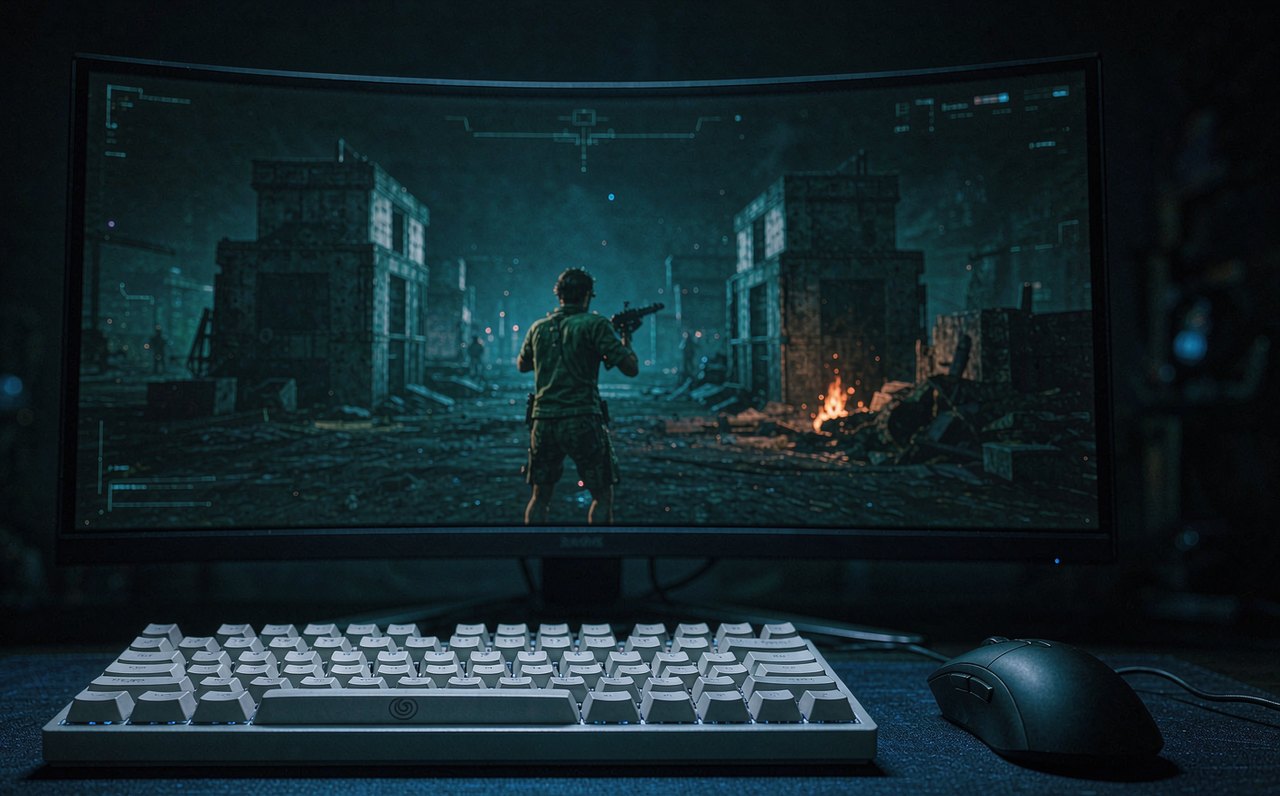
Counter-Strike 2 is a different performance animal than CS:GO. Source 2 spends more CPU on the world simulation and rendering pipeline, which means that at 1080p with low settings, many systems are CPU-limited — and the old instinct to drag every slider to the bottom overspends on settings that cost almost nothing while ignoring the two or three that matter. The goal this guide optimizes for is not a bigger average FPS number; it is steady frametimes and maximum visibility, because a frame spike at the wrong moment costs more rounds than ten missing average FPS ever will.
Menu names can shift between CS2 updates. Valve occasionally renames or regroups video options in patches. The setting names below have been stable for years, but if a label looks slightly different, look for the same words on the screen you land on.
Set up measurement first
Enable the console under Settings → Game → Enable Developer Console → Yes, then open it with the tilde key and enter cl_showfps 1. A small counter appears showing FPS plus a frametime graph. Every change in this guide gets evaluated against that counter, one change at a time, in the same deathmatch or warmup map. Five minutes per setting beats any generic "best settings" list, because your CPU, GPU, and resolution determine which costs are real for you.
The settings that genuinely cost frames
Inside Settings → Video, start with the basics that are easy to get wrong: Display Mode set to Fullscreen (borderless windowed adds compositor latency), and confirm the Refresh Rate dropdown shows your monitor maximum — a shocking number of players discover their 144 or 240 Hz screen has been running at 60 Hz in-game. Then in Advanced Video, these are the expensive ones:
- MSAA (anti-aliasing) — the single biggest GPU cost in the menu. Each multiplier (2x, 4x, 8x) multiplies the edge-smoothing work; on midrange GPUs, moving from CMAA2 to 4x MSAA can cost a double-digit percentage of frames at 1080p. Competitive pick: CMAA2 unless jagged edges genuinely distract you, in which case 2x MSAA is the compromise.
- Shadow Quality — expensive, but this one is information, not decoration: at Low, some player shadows disappear, and shadows are a real positional cue. Keep High if your frame budget allows; cut other settings first.
- Shader Detail, Effect Detail, Particle Detail — moderate costs that mostly change how the world and its explosions look. Effect Detail also affects how busy smoke and muzzle effects render, so Low is defensible competitively.
- Ambient Occlusion — costs a few percent for subtle corner shading. Low priority either way.
- FSR upscaling — CS2 includes AMD FidelityFX Super Resolution. It buys frames by rendering below native resolution and upscaling, at the cost of image clarity and slightly more input latency. At 1080p, avoid it; treat it as an emergency lever for GPUs well below the spec you actually own.
The cheap ones, by contrast, are where old habits overspend: Model Detail and Texture Detail cost little on cards with 6 GB of VRAM or more, and Texture Filtering (anisotropic) is nearly free on any modern GPU. There is no competitive reason to run those at minimum while MSAA sits at 8x.
The settings competitive players should set once
- NVIDIA Reflex: Enabled + Boost — on GeForce cards this reduces render queue latency for free. It costs no meaningful FPS and makes every flick feel slightly more immediate.
- Boost Player Contrast: Enabled — Source 2 highlights enemy silhouettes against dark backgrounds. Effectively free visibility. There is no honest competitive argument against it.
- VSync: Disabled — vsync adds input lag. If you run a G-Sync or FreeSync monitor, keep vsync off in-game, enable the refresh sync in the GPU driver panel, and cap FPS below the refresh rate (for example fps_max 237 on a 240 Hz display) so the variable-refresh window does its job.
- fps_max — unlimited frames (fps_max 0) lets CPU load spikes swing frametimes wildly. A cap your machine holds almost all the time — a bit above your refresh rate — produces steadier motion than a number it hits only on the loading screen.
The CPU-bound reality (and the launch options myth)
If your counter shows high FPS that still feels uneven, or your FPS barely changes when you lower settings, you are CPU-limited — the common case at 1080p. The levers move outside the video menu: close the browser tabs you are not using, disable hardware acceleration in Discord while playing, and set Windows power mode to Best performance (Settings → System → Power & battery → Power mode, while plugged in on laptops). Steam overlay can be disabled per game under the game's Properties → General.
Then delete the launch options folklore: as of the current CS2 builds, there is no launch option that measurably raises FPS. -novid guarded an intro video that no longer plays, -high duplicates priority handling the engine already does, and -threads can actively hurt by fighting Source 2's own scheduler. The real levers are the video menu, current GPU drivers (CS2-specific fixes ship in game-ready driver releases), and the CPU-side housekeeping above.
Verify honestly: change one setting, play the same five minutes, note the counter. Two settings usually explain most of the gap between "default" and "fast" — MSAA and shadows — and everything else is fine-tuning. The same measure-first logic applies to your display itself, as the refresh rate comparison and the input lag checklist show; if the game runs clean but hitchy, the Windows 11 stutter guide covers the system side. More performance walkthroughs live on the article list, and the tools page collects the utilities referenced across guides.