PC Overheating While Gaming: A Fix-It Walkthrough
How to confirm a gaming PC is actually thermal throttling, then fix it in order of likelihood: dust, fan curves, airflow, and old thermal paste.
The pattern is always the same: the game runs beautifully for the first fifteen minutes, then frame rates sag, fans climb to a jet-engine whine, and eventually something crashes or the whole PC shuts down mid-fight. That progression is almost always heat. The good news is that heat problems are the most diagnosable hardware failures that exist - every step is measurable, and the fixes go in a predictable order from free to fiddly. This walkthrough covers how to confirm the problem is actually thermal, then work through the causes in order of likelihood.
First, know the normal numbers
Every judgment below hangs on temperature ranges, so anchor them first. For a desktop CPU under gaming load, 60 to 80°C is normal, with brief spikes toward 85°C in heavy scenes being unremarkable. Modern CPUs are designed to run at their maximum rated temperature - typically 95 to 100°C for recent generations - for years, so "hot" is not automatically "broken." A desktop GPU under load is usually 60 to 75°C, with most cards starting to shave clock speeds somewhere around 83 to 88°C. The temperature that matters more on GPUs is the hotspot: the hottest point inside the chip, usually 15 to 20°C above the reported temperature. A GPU reporting 75°C with a 105°C hotspot has a paste or mount problem even though the headline number looks fine. NVMe drives should stay under about 70°C under load. Laptops run everything 10 to 15°C hotter than desktops by design, and CPU temperatures of 85 to 95°C during gaming are common and not automatically a fault.
Step 1: confirm it is actually heat, not a guess
Do not fix anything until you have seen the numbers during a real gaming session. The cleanest tool is HWiNFO64: download it, launch with "Sensors-only" checked, and find the CPU package temperature, the GPU temperature, the GPU hotspot, and - importantly - the "Thermal Throttling" or "Performance Limit" flags, which turn yes exactly when the chip starts shedding speed for heat. Let it run in the background while you play for thirty minutes, then check the maximum column.
For an on-screen readout during play, MSI Afterburner with RivaTuner works with any brand of card: open Afterburner's settings, go to the Monitoring tab, tick the stats you want - GPU temperature, core clock, framerate - and enable "Show in On-Screen Display." Watch two things while gaming: the temperature trend and the core clock. If the clock starts at 2,600 MHz and quietly slides to 2,100 MHz as temperatures cross the mid-80s, you have thermal throttling in writing.
Step 2: rule out the impostors
Two other failures imitate overheating, and spending an hour repasting a CPU for either one is a real risk. First, the instant power-off with no warning, no shutdown screen, and no frame drop beforehand is more often a failing power supply or an overheating-voltage protection trigger than gradual thermal throttling - thermal problems usually degrade performance first and shut things down only at the very end. Second, driver-level crashes - the screen freezing for seconds then recovering with a "display driver has recovered" style popup - point to GPU driver or VRAM issues, covered separately in the GPU driver timeout fix guide. And if the slowdown appears within seconds of launching a game rather than building over twenty minutes, check background CPU usage first: a stuck browser, a cloud sync client, or worse - a hidden cryptomining process pegging the GPU at 100 percent on your desktop - produces heat symptoms with no heat problem. Task Manager's Processes tab, sorted by the GPU column, settles that in seconds.
Step 3: dust - the cause in most cases
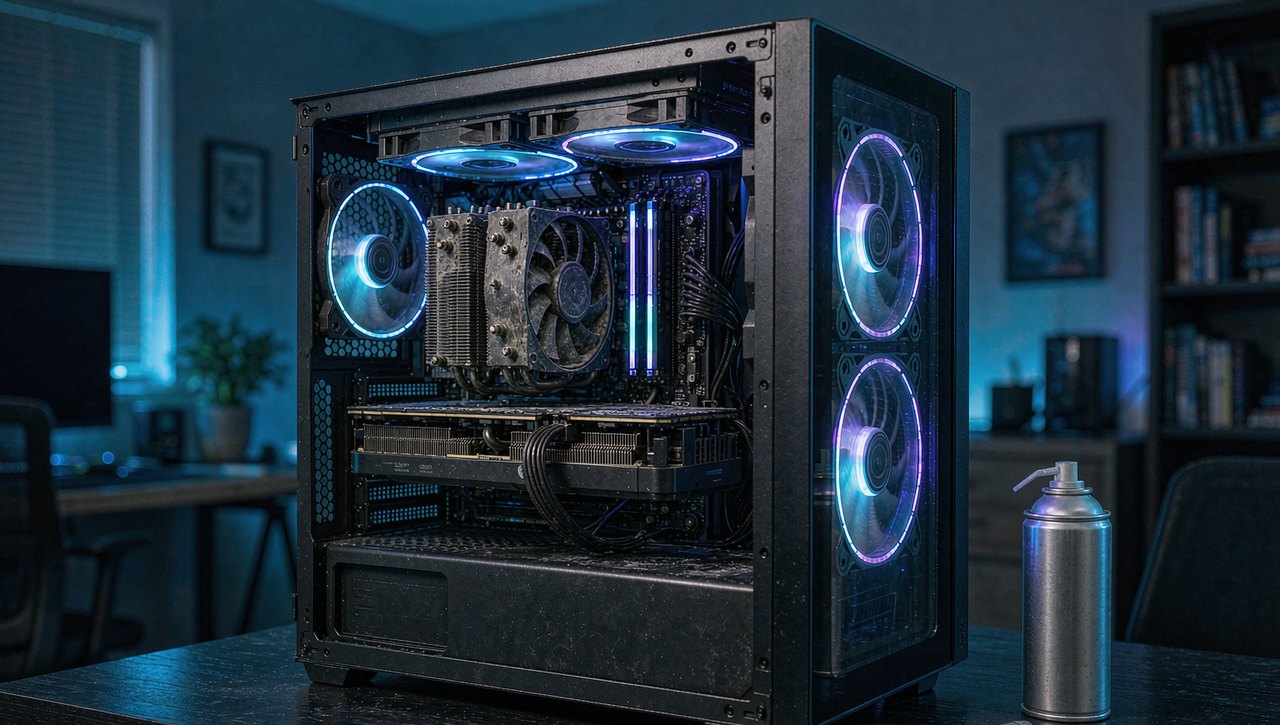
Dust is insulation, and it lands exactly where airflow is weakest: on heatsink fins and fan blades. A case that ran at 72°C in year one routinely runs at 85°C in year three purely from this. The fix costs one can of compressed air:
- Shut down the PC, switch off the power supply's rear switch, and hold the case's power button for five seconds to drain residual charge.
- Take the case outside or to a garage.
- Blow air in short bursts through the CPU cooler, the graphics card's fans and fins, every case fan, and the front and rear intake filters. Keep each fan blade from spinning freely with a finger or a toothpick - letting compressed air overspeed a fan can damage its bearing.
- Hold the can upright; a tilted can sprays cold propellant liquid onto components.
If the machine is older and the dust has formed felt-like mats on the heatsink fins, a soft brush to loosen them before the air blast makes the difference between a partial and a complete cleaning. Do this every 3 to 6 months in a carpeted or pet-owning household, or whenever you notice visible fuzz on the front intake.
Step 4: check the fan curves
Dust removal often fails because the fans were never spinning up in the first place. Most boards ship with fan curves that prioritize silence and only ramp near 80°C - by which point the throttling has already begun. Two places to fix it: in the BIOS/UEFI (usually the Delete or F2 key during boot, then a Hardware Monitor, Q-Fan, or Smart Fan section, depending on the board brand), or in software for the GPU, where MSI Afterburner's fan tab lets you drag a custom curve. A reasonable starting curve for a gaming case: fans near silent below 40°C, roughly 60 percent speed by 60°C, and 100 percent by 80°C. For GPUs, enabling "zero RPM until 50°C" plus a steeper curve above it gives you a quiet desktop and an audible warning before heat becomes a problem.
Step 5: the side-panel test for airflow
If temperatures stay high after dust and fan curves, run the diagnostic that separates an airflow problem from a component problem: take the glass side panel off and play the same game for fifteen minutes. If CPU or GPU temperatures drop 8°C or more with the panel off, the case airflow is the bottleneck - the components are fine, but air is not moving through the case correctly. The usual culprits, in order: intake filters clogged despite cleaning, front fans mounted as exhaust so cool air never enters, a CPU cooler too small for the CPU (a 95-watt stock cooler on a 125-watt chip loses this fight permanently), and a wall of cables behind the motherboard tray pressing the side panel against the exhaust path. Case airflow basics: front and bottom fans in, rear and top fans out, and more intake than exhaust for positive pressure. If the panel-off test changes almost nothing, the problem is contact between chip and cooler - which brings us to paste.
Step 6: repaste the CPU - the last free-ish fix
Thermal paste dries out over 3 to 5 years and stops transferring heat well; the classic symptom is a CPU that spikes to its maximum temperature within seconds of any load. Repasting is a 30-minute job that typically recovers 5 to 15°C: unscrew the cooler, clean both surfaces with isopropyl alcohol (90 percent or higher) and a lint-free cloth, apply a rice-grain amount of fresh paste to the center of the chip, and remount the cooler evenly in a crisscross pattern on its screws. Two cautions: do this on a GPU only if you accept the risk - many cards void warranties on disassembly and use pads as well as paste on memory chips - and check whether your CPU cooler's mounting pressure is even before blaming the paste.
Step 7: make the game produce less heat while you sort the hardware
Heat generated scales with power consumed, and you control both through the game's own settings. The single most effective dial is a frame rate cap: rendering 240 frames per second to feed a 144 Hz display burns watts for frames you never see, and a cap at your display's refresh rate - in the game's video menu, or via the driver control panel - often drops CPU temperatures 5 to 10°C. After the cap, turn down the settings that load the CPU rather than the GPU first (draw distance, crowds, shadows), and treat ray tracing as the heat-expensive luxury it is on a marginal system. If your symptom list includes hitching rather than pure heat, cross-check the stuttering fix guide, since the two problems overlap but have distinct causes.
Laptop-specific notes
Laptops need three adjustments. Elevate the rear edge so the intake vents can actually breathe - a lap or blanket blocks them completely, and a hard flat surface with the back raised often drops temperatures 5°C by itself. Use the performance power mode while gaming (Windows Settings, System, Power) so the cooling profile matches the load. And accept the number differences: sustained 90°C+ on a slim gaming laptop is design behavior
When it is genuinely broken, not just dirty
- A fan that never spins at all - dead motor, replace the fan before anything else; running a modern GPU with a failed fan trips thermal protection within minutes.
- Temperatures that jump instantly to maximum under the lightest load point to a cooler that has lost contact entirely - remount before repasting.
- Repeated thermal shutdowns even after cleaning and repasting on a system that previously ran cool suggest a failing pump in an all-in-one liquid cooler; these typically last 5 to 6 years and cannot be serviced.
- GPU hotspots more than 25°C above the reported temperature mean the card needs paste work or professional service, regardless of how normal the headline number looks.
The bottom line
Work the list in order: measure real temperatures during play, rule out power-supply and driver impostors, clean the dust out of every heatsink and filter, steepen the fan curves, run the side-panel airflow test, and repaste only what the numbers say needs it. Most "my PC overheats" cases end at the compressed-air step, and nearly all of the rest end at fan curves or a clogged intake.
More hardware and settings guides are in the SavePoint blog index, including fixing washed-out HDR in games if display problems are also on your list, and reducing input lag once the frame rates are stable again.
Menu names and default fan behavior vary between motherboard vendors and driver versions, so treat exact paths as approximate for your hardware generation. Disassembly and repasting are done at your own risk and may affect warranty coverage - check your manufacturer's terms first.