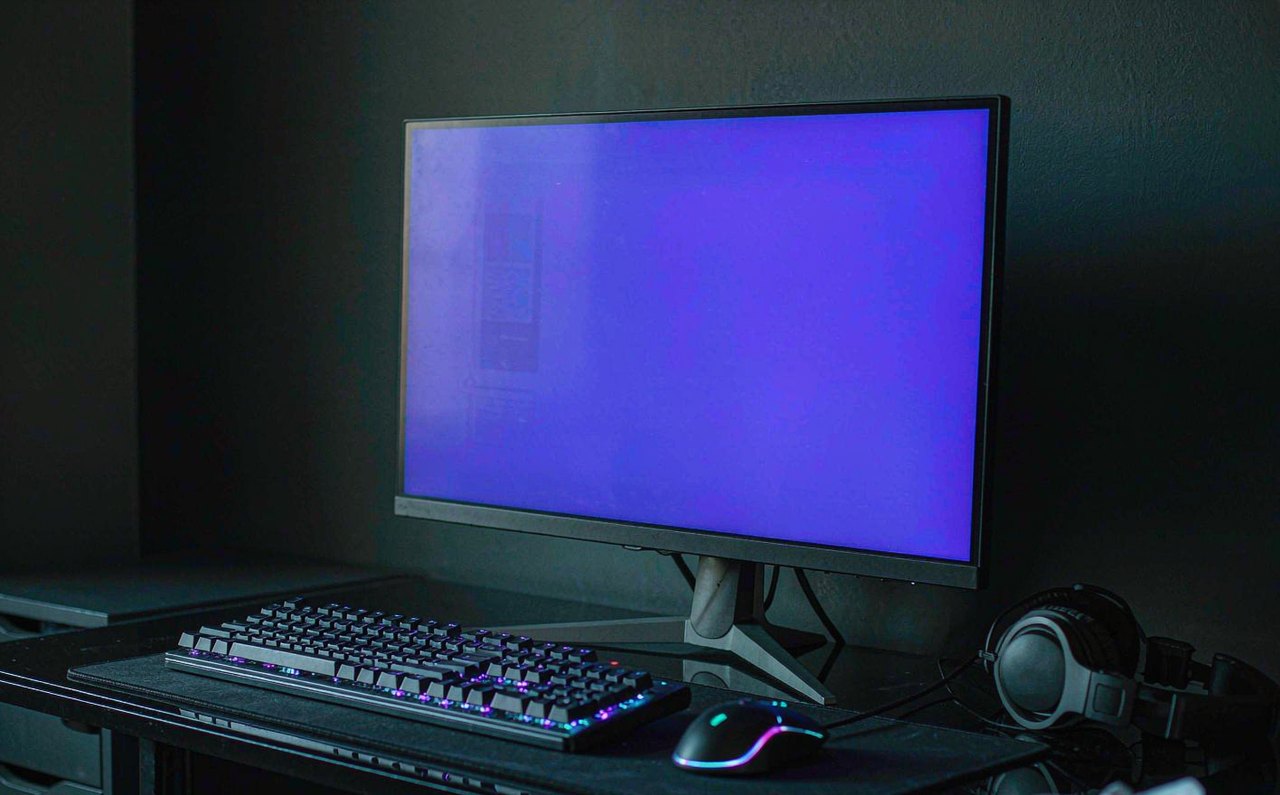
Gaming Ergonomics by the Numbers: Setup, Breaks, and What the Evidence Says
Wrist pain, dry eyes, and 6-hour ranked sessions do not mix. The measurable ergonomic rules for long gaming: monitor height and distance, neutral wrist angles, the 20-20-20 rule, and how break schedules actually map to fewer symptoms — with the sources named.
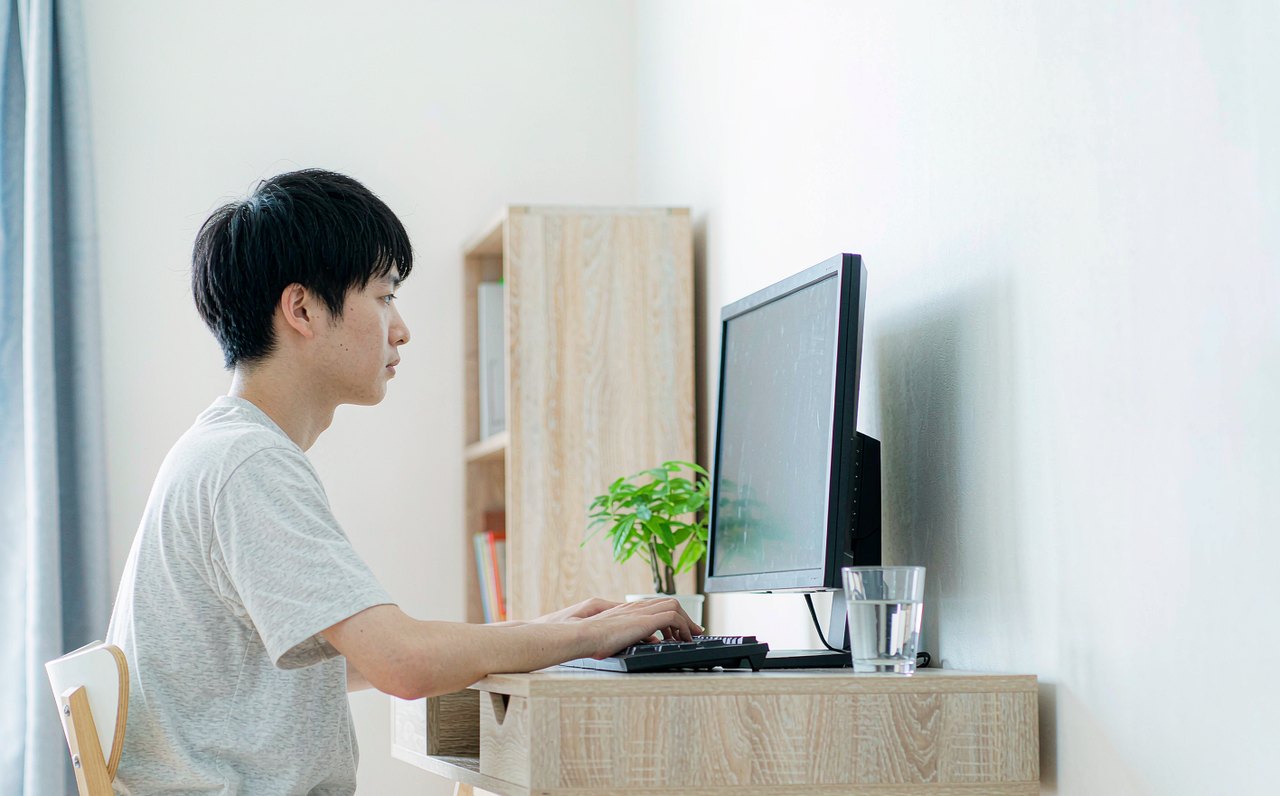
Esports coverage loves reaction time and APM, but the physical side of long sessions is where players actually lose practice hours: sore wrists, a stiff neck, eyes that feel like sand by the third match. Unlike most gear marketing, this part has real, checkable numbers behind it — occupational health guidance that has been studied for decades in office work applies almost directly to gaming. Here are the numbers that matter, where they come from, and the setup routine that takes ten minutes once.
Monitor: two numbers fix most neck strain
Two measurements describe a healthy monitor position, and both come from occupational safety guidance (the US OSHA computer workstation guidelines are the most cited public source):
- Height: the top edge of the screen at, or slightly below, eye level. Your eyes should land on the upper portion of the display without tilting your head up. A monitor that sits too high is the most common mistake, especially with monitors sold on tall stands.
- Distance: roughly 50–100 cm (20–40 inches) from your eyes to the screen. OSHA's guidance range maps to about an arm's length. Too close and you force continuous eye convergence plus more neck flexion; too far and you lean in without noticing.
One esports-specific caveat: competitive players often sit closer than office guidance suggests, chasing lower perceived latency and better focus. If you do, compensate by lowering the monitor so your gaze still hits the upper third of the screen, and be honest about the trade-off — the latency delta over a proper distance is small compared to the display chain itself, which is covered in the site's input lag breakdown.
Wrists: the neutral angle rule
Repetitive strain in gamers shows up first at the wrist and forearm, and the mechanical cause is almost always the same: extending the wrist backwards while clicking or pressing keys. The guidance, again consistent with OSHA material:
- Keep wrists straight (neutral) — in line with the forearm, not bent up, down, or sideways. If your keyboard's feet are flipped up, close them; positive tilt invites extension.
- Elbows at roughly 90–120°, forearms supported by the desk or armrests rather than floating.
- A wrist rest is for pauses, not for resting while actively aiming — pressing down on it while clicking compresses the palm side of the wrist. Palm floating, wrist neutral, click with a relaxed hand.
Sensible mouse sensitivity deserves a mention here: an extremely low sensitivity forces large arm sweeps for every flick, while an extremely high one forces constant tiny wrist micro-corrections. Both extremes load different tissues excessively. A moderate sensitivity that lets small aim corrections come from the elbow and larger turns from the arm spreads the workload instead.
Eyes: the 20-20-20 rule and blink rate
The 20-20-20 rule — every 20 minutes, look at something about 20 feet (≈6 meters) away for 20 seconds — is popularized by the American Academy of Ophthalmology as a simple habit against digital eye strain. It works by giving the focusing muscle a break from the fixed near-distance effort your screen demands all session.
Two supporting facts worth knowing, both established in the eye-strain literature:
- Blink rate drops sharply during screen focus — studies of computer users have measured roughly a 60% reduction compared to relaxed blinking. Fewer blinks means a dry, burning, gritty feeling by session's end. The fix is trivially cheap: deliberate full blinks during every 20-20-20 break.
- Room-screen brightness mismatch is a major aggravator: a very bright screen in a dark room (or vice versa) forces constant pupil adaptation. Match ambient light to screen brightness; if you play at night, a low warm desk lamp beats a pitch-black room.
Breaks: what the evidence actually supports
The 20-20-20 rule covers the eyes. For the body, the research consensus on prolonged sitting and sustained repetitive work points at short, frequent movement breaks rather than one long one: a few minutes of standing and movement roughly every hour performs better than saving it all for the end. Treat match boundaries as natural break points — stand up, stretch forearms and shoulders, walk for water. Three minutes, every hour, is the minimum viable habit and is trivially trackable with a phone timer.
On the competitive side, structured schedules acknowledge this: published routines from professional teams build warm-up, scrim blocks, and off-screen review into the day precisely because unbroken 10-hour grinds produce worse practice, not better. The career-length data behind those schedules is examined with sources in the pro career piece.
Gear marketing vs. the free fixes
A final honesty check. "Ergonomic gaming chairs," vertical mice, and wrist braces are all sold with confident claims, but the highest-value changes in this article cost nothing: monitor height (a stack of books works), monitor distance, closed keyboard feet, neutral wrists, and a break timer. If you spend money at all, spend it on adjustability — a chair and a monitor arm that actually reach the positions above — rather than on anything advertised as fixing posture passively. Gear cannot move for you; the display side of setup is where a real purchase (a higher-refresh panel) does change the experience, as quantified in the refresh rate comparison.
The ten-minute setup checklist
- Top of monitor at or just below eye level, 50–100 cm away.
- Chair height so feet are flat, thighs about parallel to the floor; elbows 90–120°.
- Keyboard feet down, wrists neutral, no pressure on the palm while clicking.
- Ambient light matched to screen brightness; no pitch-black rooms.
- Two timers: 20-20-20 eye breaks, and a 3-minute movement break each hour.
None of this is glamorous, and all of it is checkable — measure the monitor distance with a tape, set the timers, and notice the difference by the end of the week. More analysis pieces are on the full article list; the site's approach to sourcing and corrections is on the about page.