Fortnite on PC: Which Settings Actually Cost Frames (and What to Pick)
Fortnite ships three rendering modes and dozens of graphics options, but only a handful of them move your frame rate much. A settings-by-settings breakdown of Performance Mode vs DirectX 11 vs DirectX 12, with the two options that dominate the frame budget.
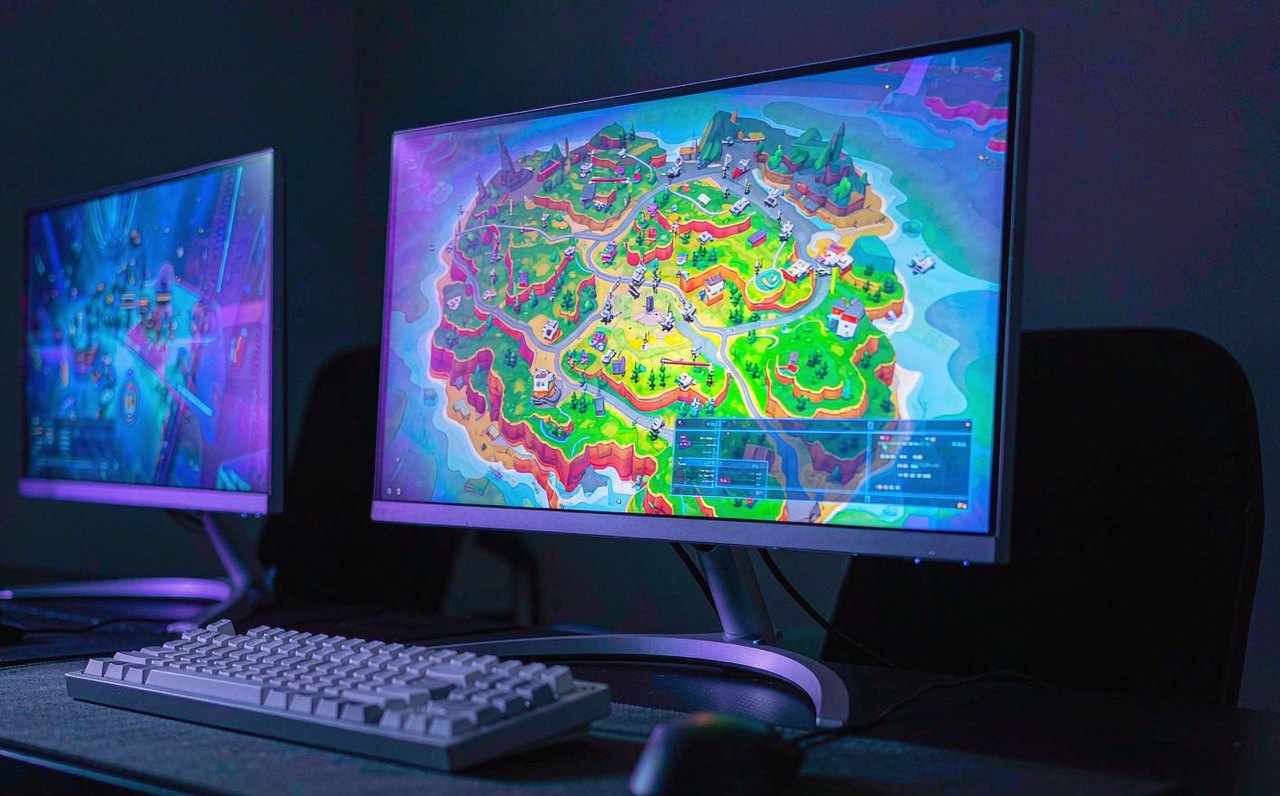
Fortnite is one of the most-searched "how do I get more FPS" games on PC, and for good reason: it runs on everything from office laptops to top-end rigs, and its settings menu hides a fork most players never notice — the rendering mode you pick at the top changes what the rest of the menu even offers. This is a settings-by-settings breakdown, ordered by how much each option actually affects frame rate, so you can stop toggling things at random and get a stable number on your hardware.
Step zero: measure before you change anything
Turn on the built-in counter first: Settings → Video and enable Show FPS (exact label may vary slightly by version). Every change below should be judged by that counter in a consistent spot — drop into a busy match or creative map, not the calm lobby, because the lobby lies. Set your Frame Rate Limit explicitly too; if it is capped at your monitor's refresh rate, improvements above that cap will be invisible, which is fine — the point is smoothness, not a bigger number on a capped display.
The big fork: rendering mode
At the top of the video settings you choose between DirectX 11, DirectX 12, and Performance Mode. Everything else in the menu depends on this choice:
- Performance Mode replaces the full renderer with a stripped-down one built for competitive play. The advanced options shrink to essentially Meshes and Textures, distant scenery is simplified, and the frame rate ceiling is dramatically higher on modest hardware. Epic still downloads additional content the first time you enable it (a multi-gigabyte one-time download), so budget for that on a slow connection.
- DirectX 11 is the classic renderer: all options available, predictable, and the safe middle ground on older CPUs.
- DirectX 12 unlocks the modern lighting features (Lumen-based global illumination and reflections, plus optional hardware ray tracing on supported GPUs). It looks dramatically better in lobbies and showcase maps — and it is also where most of your frame rate goes to die on mid-range cards.
The honest rule: if you play to win, especially on a 60-class or lower GPU, Performance Mode first, DirectX 11 second. DirectX 12 is for when you have frames to spare or you are in it for the screenshots. Competitive pros almost universally run Performance Mode, and that is a preference you can verify by watching any pro's published settings — it is not marketing.
The two settings that dominate the frame budget
1. Global illumination and reflections (DX12 only)
If you are on DirectX 12, Global Illumination & Reflections is the single most expensive setting in the menu. Dropping it from Epic to Medium routinely buys back more frames than every other option combined, because Lumen is doing real-time lighting computation every frame. If you must stay on DX12 for visuals, set GI/reflections to Medium and Shadows to Medium as the next step. Hardware ray tracing toggles should stay off unless you have a card built for it — the visual delta in an actual fight is small, the frame cost is not.
2. Meshes (Performance Mode only)
Inside Performance Mode, Meshes is the one meaningful lever. It controls the density of geometry on objects — buildings, props, clutter. Lowering it reduces draw workload on both CPU and GPU and is the standard competitive choice. Keep Textures higher than meshes if you have the VRAM for it (check usage in the same video menu or an overlay): textures mostly cost memory, not frames, and keeping them reasonable preserves readability. If you see texture pop-in or stutter on a card with limited VRAM, step textures down one notch.
Options that matter less than you think
- View distance / draw distance. Famous from older optimization guides, much less relevant now — Epic decoupled player visibility from this setting years ago, so cranking it up barely hurts your frame rate but also does not help you spot enemies earlier. Leave it around Medium–Epic by preference; do not expect either direction to change your FPS much.
- Effects / Post-processing. Real but small costs. Worth dropping on integrated graphics; barely visible elsewhere.
- Resolution scaling / 3D resolution. A genuine lever, just an obvious one: lower internal resolution = more frames, blurrier image. On a 1080p monitor, going below about 80% starts making distant players hard to identify, which costs you more than the frames buy.
- V-Sync. Off for input latency unless you get distracting tearing; if you want the reasoning, see the site's input lag walkthrough.
Beyond the menu: the boring checks that actually matter
- Power plan and GPU mode. Windows running on a balanced power plan on a laptop will silently throttle. Set the plan to high performance while plugged in, and make sure the game runs on the discrete GPU, not the iGPU (Windows Settings → Display → Graphics → per-app GPU preference).
- Drivers. A driver that is several versions behind is a common cause of shader stutter and crashes in Unreal Engine titles; if you have crash-to-desktop episodes rather than low FPS, work through the GPU driver routine in the GPU driver crash guide.
- Backgrounds. A browser with a dozen tabs competes for the same CPU threads Fortnite's game logic runs on. Close it and watch the counter.
Bottom line
Pick Performance Mode for play, DX12 for beauty shots. Inside Performance Mode, Meshes is the lever; inside DX12, global illumination and reflections are. Verify every change with the built-in FPS counter in a real match, cap slightly below your fight-time peak, and ignore settings that legacy guides treat as magic. The same measure-then-change discipline applies to other titles — the CS2 settings breakdown and the Minecraft FPS guide follow the identical method. More walkthroughs live on the full article list, with the site's editorial policy described on about page.
Epic adjusts Fortnite's settings menu regularly and Performance Mode's option set has changed over the years; exact menu labels may differ slightly in the current version.